
A guided introduction to the
3D Wire Bender S.
An 11-video training course for orthodontic teams
Shape a repeatable
digital workflow.
Move from your first STL file to a confident, repeatable wire-bending process. This academy organizes the provided YouTube training playlist into a clear on-the-job learning path.
Start Course →Open playlist ↗3DNA Dental Wire Bender S: 01 Create A New Patient
Create a new patient in the Wire Bender S software and establish the first record in your digital workflow.
Watch lesson ◉ ▷
▷Original YouTube thumbnail for lesson 01.
 Download Slides01 Create A New Patient
In this step
Learn the context, then make it practical.
The Wire Bender S combines AI-assisted digital design, precision bending, and automated cutting to help teams move through orthodontic wire fabrication with greater consistency. Use the playlist as a guided reference while you set up your own repeatable workflow.
Working outcome
Start each appliance case with a clean, repeatable patient record.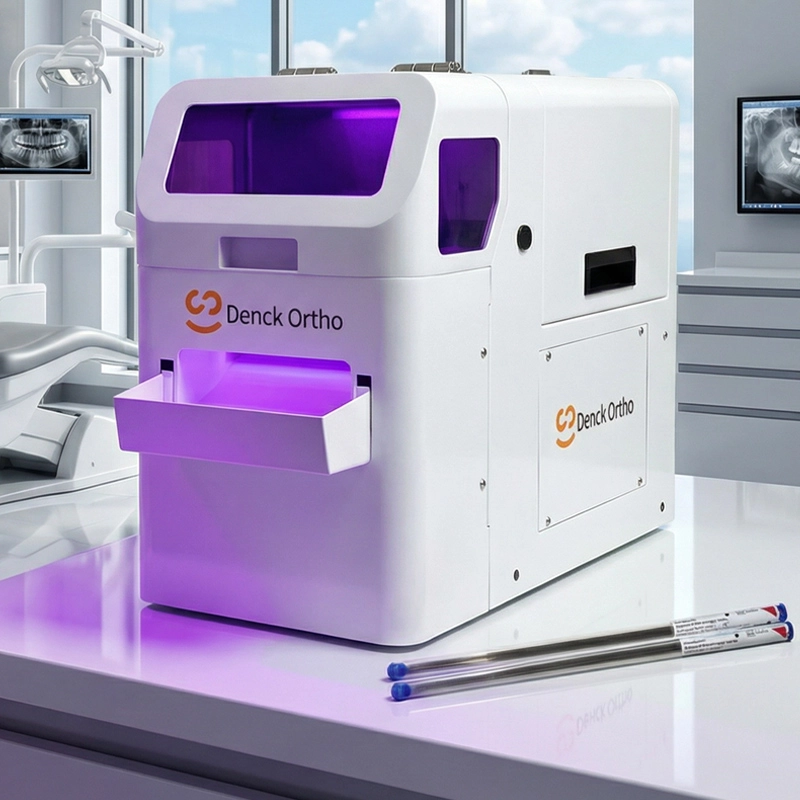
Why this workflow matters
Connect the digital model to precision wire fabrication.
The 3D Wire Bender S supports an orthodontic workflow that pairs AI-assisted recognition with precision bending. The course structure helps teams understand that end-to-end sequence before using it day to day.
Read the product overview ↗
Lesson instructor
Digital orthodontic innovation
Dr. Neil
From 2017 to 2026, Dr. Neil advanced the OG-DOS digital orthodontic system, supporting chairside software and hardware workflows for case-data management, cephalometric documentation, AI-assisted tooth segmentation, treatment setup visualization, staging comparison, attachment design, and manufacturing outputs.
His work includes automated orthodontic wire bending, digital wire design, model matching, Hawley retainer and fixed lingual-retainer systems, indirect bonding, personalized bone expanders, and manufacturing-ready STL outputs.
Knowledge assessment
Certification Test
The academy’s 25-question assessment, timed completion flow, answer feedback, and manual-certificate review are hosted securely in the live academy application.
Open Certification Test ↗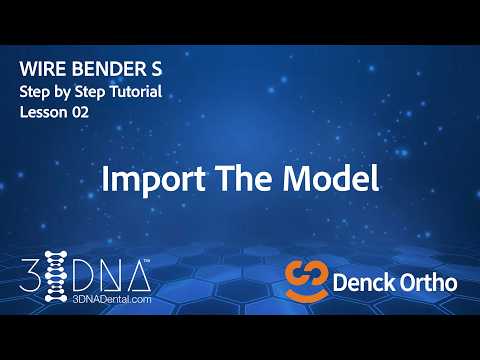
Course focus
Orthodontic wire-bending training for a digital lab workflow.
This professional orthodontic lab training course follows the digital orthodontic workflow from STL orthodontic model import and AI wire design to robotic wire bending and orthodontic appliance fabrication. The lesson series supports teams working with Hawley retainers, Adams clasps, C clasps, labial bows, lingual retainers, and related dental CAD/CAM workflows.
